🎯 100% of your SVFF Plus +₊⁺₊✧ lessons must be recorded—fully, clearly, and consistently. This guide walks you through all the options to help you meet the requirement and submit your recordings the right way.
🎥 OPTION 1: Video Recording (Recommended)
The best way to record your lesson is via video—so both teacher and student voices (and faces) are captured clearly.
✅ Recommended Tool: Zoom (Preferred)

- SVFF now offers multiple Pro Zoom accounts just for teachers.
- If you don’t have access yet, request a Zoom Pro account before your class.
- Zoom allows full video + audio recording in just one click.
- It’s simple, fast, and reliable for most devices.
✅ Other Tools You Can Use:

Camtasia

OBS Studio

Loom
- Camtasia
- OBS Studio
- Loom
- Screencast-O-Matic
⚠️ Note: Recording and teaching at the same time requires a strong computer.
If your device is not powerful enough, stick with Zoom, which runs more smoothly.
💡 SVFF Support can help you install recording tools or troubleshoot your setup if needed.
🔉 OPTION 2: Audio-Only Recording (If Video Isn’t Possible)
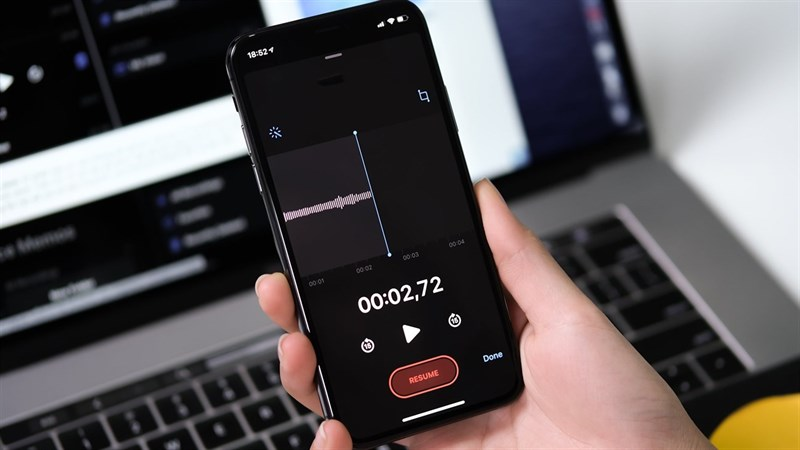
If for some reason you can’t record video, you may use audio-only—but only as a backup solution.
✅ How to do it:
- Use your phone (iPhone or Android) to record the full lesson.
- You can use any Voice Recorder app, or download the SVFF Recording App (coming soon).
- Make sure the speaker is ON so both you and the student can be heard clearly.
⚠️ The entire lesson must be recorded—start to finish.
Recording just part of the session (e.g. 30 minutes of a 60-minute class) will not count.
🔄 STEP 2: Convert Audio to Video (for YouTube Upload)
Even if you record audio only, we still need a YouTube video link for transcription.
Here's how to convert your audio into video using Canva:
🎨 Convert Audio to Video with Canva:
1. Open your Canva account (or use the SVFF Canva account).
2. Create a new video project.
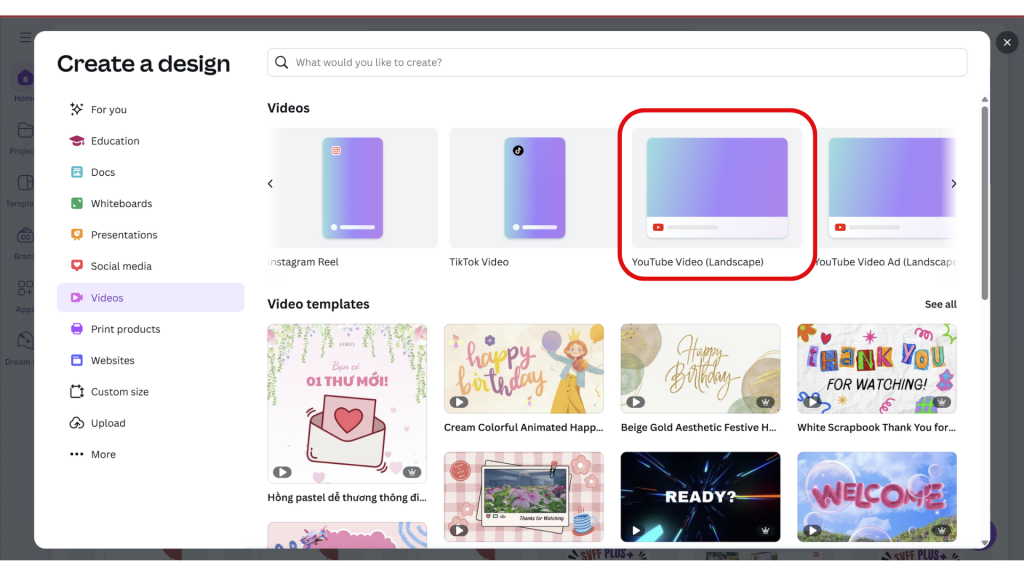
3. Add any image as background. You can:

- Use a simple background, or
- Upload the SVFF logo as the image.
4. Upload your audio recording.
5. Drag the audio into the timeline.
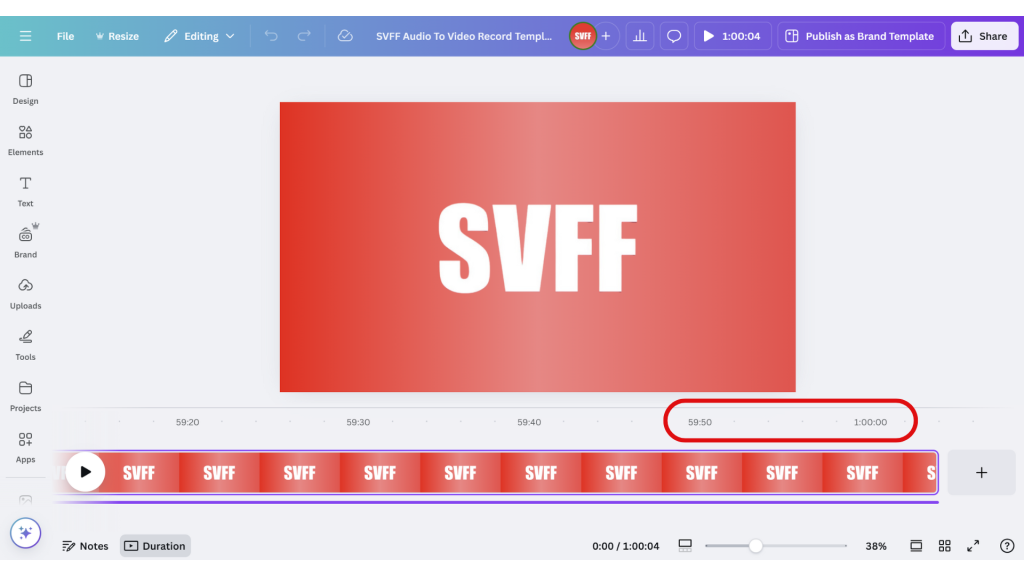
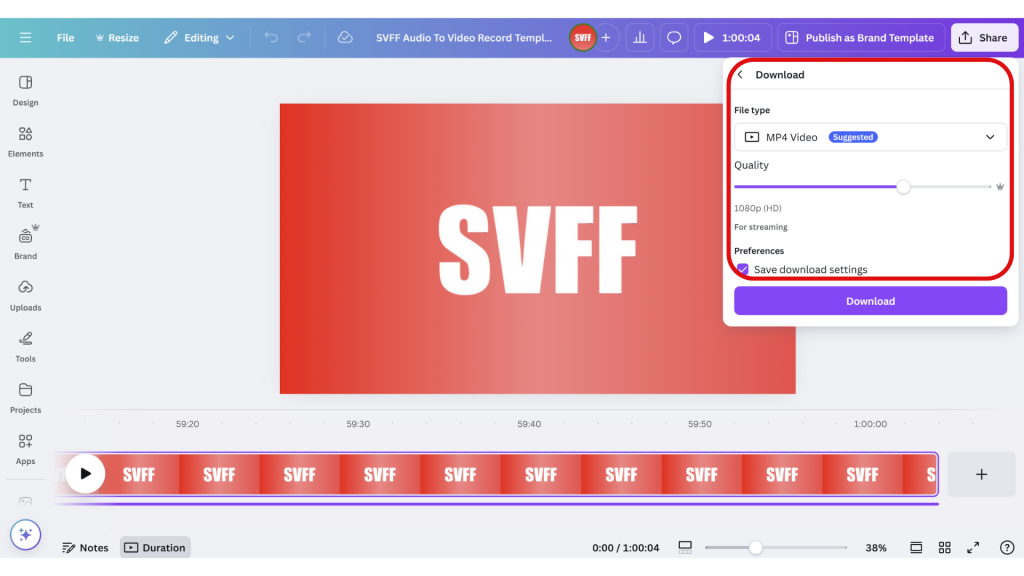
6. Important: The default duration of the video is 5 seconds.
You must manually adjust the duration to match the audio.
Example: If your audio is 60 minutes, set the video length to 60 minutes.
7. Export the video. Choose standard quality (Full HD is enough).
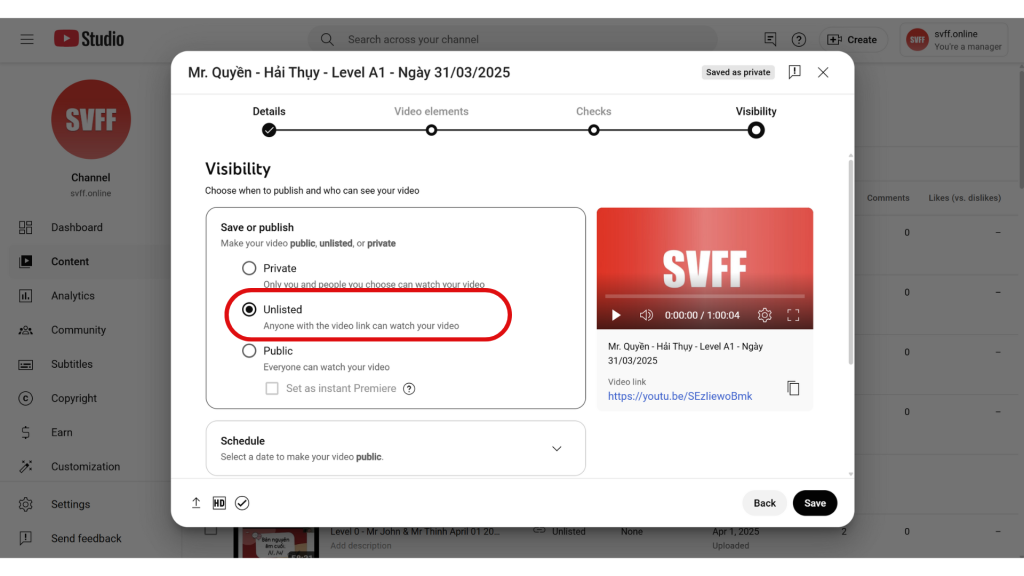
8. Upload your video to YouTube and keep it unlisted (not private).
9. Submit the YouTube link to SVFF for transcription and tracking.
📌 Summary of Your Commitment

To remain an SVFF Plus +₊⁺₊✧ teacher, you must:
- ✅ Record 100% of your lessons
- ✅ Record the full length of each class
- ✅ Provide a YouTube video link for every session
- ✅ Explain to students that recordings are for AI transcription and analysis only
🤖 Reminder: AI Is Here to Help

All your lesson recordings are processed using OpenAI technology to:
- Transcribe conversations
- Generate flashcards, grammar notes, and speaking reports
- Help students learn smarter—and remember longer
You teach. AI enhances. Everyone wins.
💬 Need help with Zoom, Canva, or recording setup?
Reach out to the SVFF Tech Support team anytime—we’re here to help you succeed.
0 Comments
Log in to leave a comment.